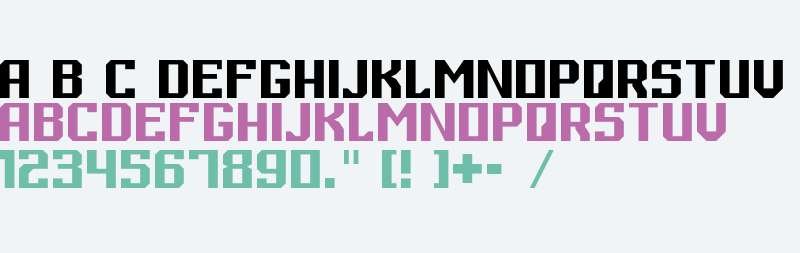
Ever admired a website's sleek typography or a poster's distinctive lettering and wished you could harness that same visual power in your own projects? The secret often lies in downloading and installing custom digital fonts. A unique typeface can transform a dull document into a dynamic presentation, elevate a brand's identity, or add a personal touch to any creative endeavor. But for many, the process of finding, acquiring, and correctly integrating these digital assets feels like navigating a hidden maze.
Fear not. This comprehensive guide will demystify the entire journey, from discovering the perfect font to ensuring it appears exactly where you need it, whether you're designing a professional logo or just sprucing up your family newsletter. By the end, you'll be confidently managing your font library, unlocking a new level of creative freedom on your computer.
At a Glance: Key Takeaways
- Custom fonts elevate design: They are crucial for visual identity and professional-looking projects.
- Common formats: You'll mostly encounter .TTF and .OTF files for desktop use, and .WOFF/.WOFF2 for web.
- Download from trusted sources: Sites like Google Fonts, Creative Fabrica, FontCanyon, and DaFont offer a wide selection.
- Unzip first: Most downloaded font files come in a ZIP archive and must be extracted before installation.
- Installation is simple: On Windows, right-click and "Install." On macOS, double-click and "Install Font."
- Restart apps: If a new font doesn't appear, close and reopen your application, or even restart your computer.
- Web fonts are different: For websites, you'll either link to a service like Google Fonts or self-host .WOFF/.WOFF2 files.
- Manage your fonts: Too many active fonts can slow your system. Disable or delete unused ones through your operating system's font settings or a dedicated manager.
- Always check licenses: "Free for personal use" doesn't mean "free for commercial use."
Why Custom Fonts Are Your Design Superpower
In a world saturated with visual information, standing out is paramount. While stock fonts like Arial or Times New Roman are functional, they rarely convey personality or uniqueness. Custom fonts, on the other hand, are expressive tools that communicate tone, professionalism, and identity even before a single word is read.
Think of it like this: your brand's message is the dialogue, and your font is the voice actor. A strong, distinct voice makes an immediate impression, influencing how your audience perceives your work. From a quirky display font for a party invitation to an elegant serif for a business report, the right typeface can significantly enhance readability, mood, and overall aesthetic appeal. It’s not just about looking good; it's about communicating more effectively.
Decoding Font File Formats: TTF vs. OTF (and Friends)
Before you dive into downloading, it helps to understand the types of font files you'll encounter. For desktop use, two formats reign supreme:
- TrueType Font (.TTF): Developed by Apple and Microsoft, TTF has been a standard for decades. It contains the font's data and character outlines in a single file, making it widely compatible across operating systems and applications. Most free fonts you find will be in TTF format.
- OpenType Font (.OTF): A newer format developed by Adobe and Microsoft, OTF builds upon TTF. It offers greater capabilities, including support for more characters (like extended language sets), ligatures (where character pairs combine into a single glyph), alternate characters, and small caps. While both TTF and OTF work for basic text, OTF often provides more typographic nuance for professional design.
Do you need to choose between TTF and OTF? For most users and general purposes, either format will work perfectly. If you're a designer looking for advanced typographic features, OTF might be preferable. Otherwise, just pick the one available.
Beyond your desktop, if you're working on websites, you'll encounter two additional formats: - Web Open Font Format (.WOFF) & WOFF2 (.WOFF2): These are specifically optimized for web use. They are essentially OpenType or TrueType fonts with metadata and compression, allowing for faster loading times on websites. WOFF2 offers even better compression than WOFF. You typically won't install these directly on your computer, but rather upload them to a web server.
The Hunt for the Perfect Typeface: Where to Find Quality Fonts
The internet is a treasure trove of fonts, both free and paid. Knowing where to look ensures you get high-quality files and understand their usage rights.
- Creative Fabrica & FontCanyon: These marketplaces offer vast collections of fonts, often bundled with other design assets. Many come with commercial licenses, making them excellent choices for professional projects. They frequently feature unique and trending designs.
- Google Fonts: A fantastic resource for web developers and designers, Google Fonts provides hundreds of open-source fonts that are free to use for both personal and commercial projects. They're particularly easy to integrate into websites, but you can also download them for desktop use.
- DaFont: Famous for its enormous collection of free fonts, DaFont is a popular choice for hobbyists and personal projects. Be mindful, however, that many fonts here are "free for personal use" only. Always check the license information carefully if you intend to use a font for commercial purposes.
- Adobe Fonts: If you subscribe to Adobe Creative Cloud, you have access to thousands of high-quality fonts included in your membership. These are easily activated and deactivated directly through the Creative Cloud application.
- Other Premium Marketplaces: Sites like MyFonts, Fontspring, and Envato Elements offer curated selections of professional-grade fonts, often from renowned type designers. These are excellent investments for serious branding and design work.
Remember, the right font can profoundly impact how your audience receives your message. For instance, creating a playful, pixelated look might involve a custom font generated specifically for that aesthetic, much like using a Mario font generator to get that iconic video game feel. Always choose a font that aligns with your project's tone and purpose.
Before You Install: Essential First Steps
Nearly every font you download from the internet will arrive in a compressed folder, typically a ZIP archive. This saves download time and keeps related files (like different font weights or licensing documents) together.
- Download the ZIP file: After selecting your font(s), click the download button. Your browser will usually save the ZIP file to your "Downloads" folder.
- Unzip the archive:
- On Windows: Locate the ZIP file, right-click on it, and select "Extract All..." Choose a destination folder (your Downloads folder is usually fine) and click "Extract." A new unzipped folder will appear containing your font files.
- On macOS: Double-click the ZIP file. macOS will automatically create a new folder in the same location, unzipping the contents.
Inside the unzipped folder, you'll find your font files, usually ending in.ttfor.otf. There might also be aLICENSE.txtorREADME.txtfile – it’s always a good idea to read these, especially for commercial use.
Installing Fonts on Your Desktop: A Step-by-Step Guide
The installation process is refreshingly straightforward on both Windows and macOS.
For Windows Users
You have a couple of easy methods to get your new fonts up and running:
- The Quick Install Method:
- Navigate to the unzipped folder containing your
.ttfor.otffont files. - Right-click on the individual font file you wish to install.
- From the context menu, select "Install" or "Install for all users." Choosing "Install for all users" makes the font available to every user account on your computer, which is generally recommended for shared devices or if you switch between user profiles frequently.
- Windows will quickly process the installation, and you'll see a small progress bar.
- Drag-and-Drop to Fonts Folder (Advanced but effective):
- Open your file explorer and navigate to
C:\Windows\Fonts. This is the system folder where all your installed fonts reside. - Alternatively, you can type "Font Settings" into the Start menu search bar and click on the "Font settings" entry. You'll see an area that says "Drag and drop to install fonts."
- From your unzipped font folder, drag and drop the
.ttfor.otffile directly into either theC:\Windows\Fontsfolder or the designated drag-and-drop area in Font Settings. - Windows will then install the font.
Once installed, the font should immediately be available in most applications.
For macOS Users
Apple makes font installation intuitive through its Font Book application:
- The Double-Click Method (Most Common):
- Locate the unzipped
.ttfor.otffont file. - Double-click the font file. This will open a preview window in the Font Book application.
- Review the font preview to ensure it's the one you want.
- Click the "Install Font" button located at the bottom right of the preview window.
- Font Book will validate the font and then add it to your font library.
- Drag-and-Drop to Font Book (Alternative):
- Open the Font Book application (you can find it in your
Applicationsfolder or by searching with Spotlight). - From your unzipped font folder, drag and drop the
.ttfor.otffile directly into the Font Book window. - Font Book will then proceed with the installation, validating the font as it adds it.
By default, fonts installed this way are available to your current user account. If you need the font to be accessible to all users on the Mac, you would place the font file into the/Library/Fontsfolder instead of your user-specific/Users/Your_Username/Library/Fontsfolder. However, for most personal use, the default installation is sufficient.
Troubleshooting: When Fonts Don't Show Up
It's frustrating when you install a font only to find it missing from your favorite design application. Here's what to do:
- Close and Reopen Applications: Most programs (like Microsoft Word, Adobe Photoshop, Figma, etc.) load their available fonts upon startup. If the application was open during installation, it might not "see" the new font until it's restarted. Close the application completely and then reopen it.
- Restart Your Computer: If restarting the application doesn't work, a full computer restart can often resolve the issue by refreshing the system's font cache.
- Check the Correct Installation Folder: Double-check that the font file was indeed moved or copied to the correct system font directory on your OS.
- Windows:
C:\Windows\Fonts - macOS: Font Book application (check "All Fonts" or "User" collections)
- Font File Corruption: Rarely, a downloaded font file might be corrupt. Try downloading the font again from the source or attempt to install a different font to rule out a system-wide issue.
- Font Compatibility: Very old or obscure font formats might not be fully compatible with modern operating systems or specific applications. While rare with TTF/OTF, it's worth considering if all else fails.
Beyond Your Desktop: Using Fonts in Web Projects
If you're building a website, simply installing a font on your computer won't make it appear in a visitor's browser. Web fonts require a different approach. There are two primary methods:
Option 1: Use Google Fonts (Recommended for Simplicity)
Google Fonts offers a vast library of free, high-quality fonts that are incredibly easy to integrate into any website. This is the go-to solution for many web developers.
- Select Your Font(s): Visit the Google Fonts website. Browse or search for your desired font.
- Add to Collection: Click the "plus" icon next to the font styles you want to use (e.g., Regular, Bold, Italic).
- Embed Code: A sidebar will appear on the right. Google will provide you with a
<link>tag to place in your HTML's<head>section. It will look something like this:
html